The short version
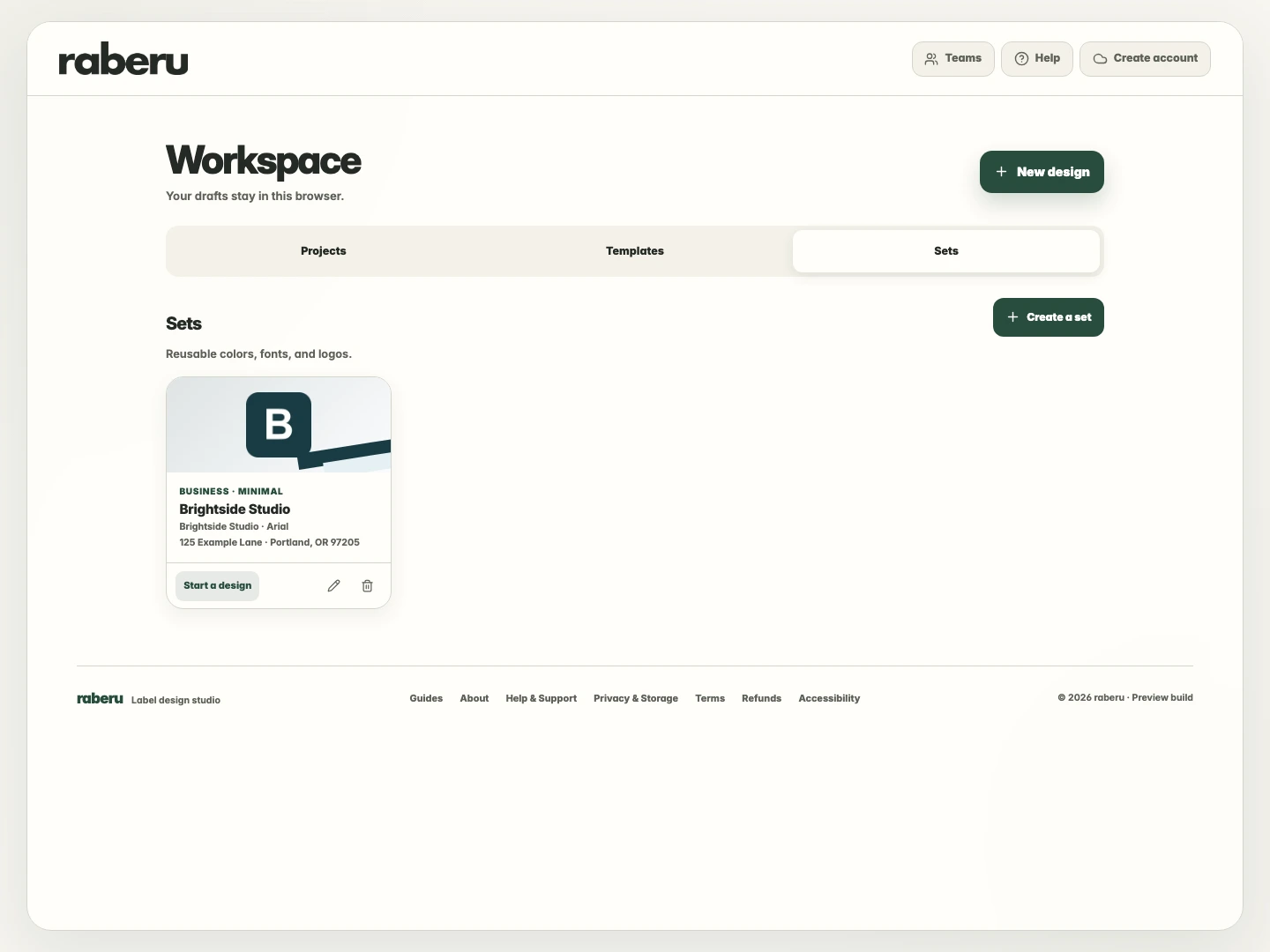
Open Sets in your workspace and select Create a set. Add the name, logo, address, and style you want to reuse, then select Save set. Apply the saved details to compatible label designs.
1. Open Sets in your workspace
Choose the Sets tab in your workspace, then select Create a set. Give it a name that will be easy to recognize when you return to it.
2. Add your details
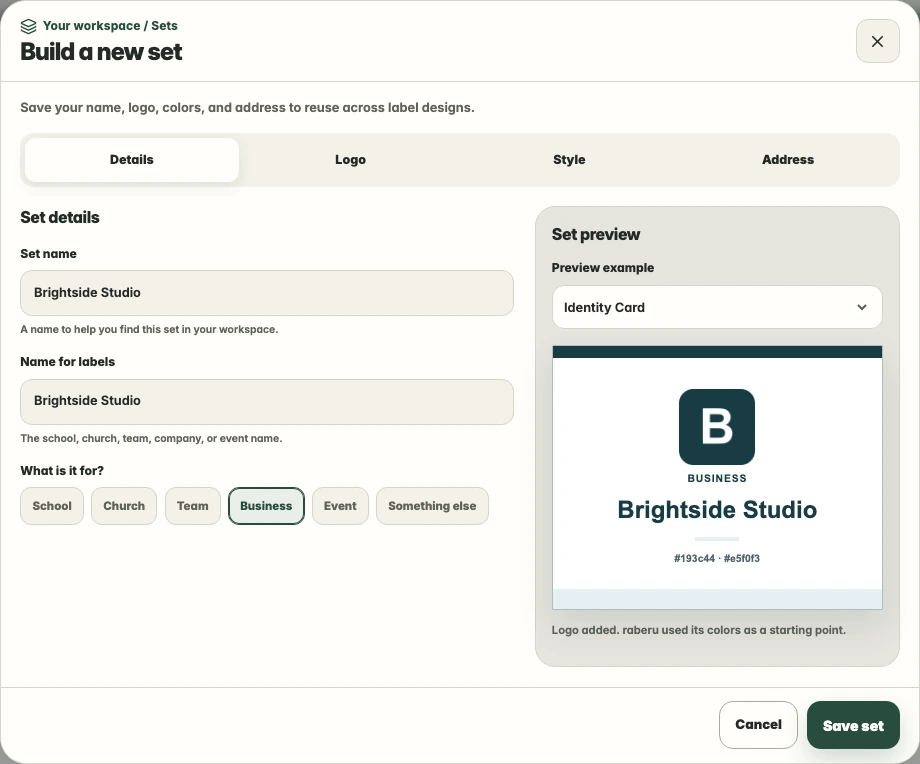
In Details, enter the name you want to use on labels and choose the set’s purpose. Add a logo or mailing address in their own tabs when your labels need them.
3. Choose the look
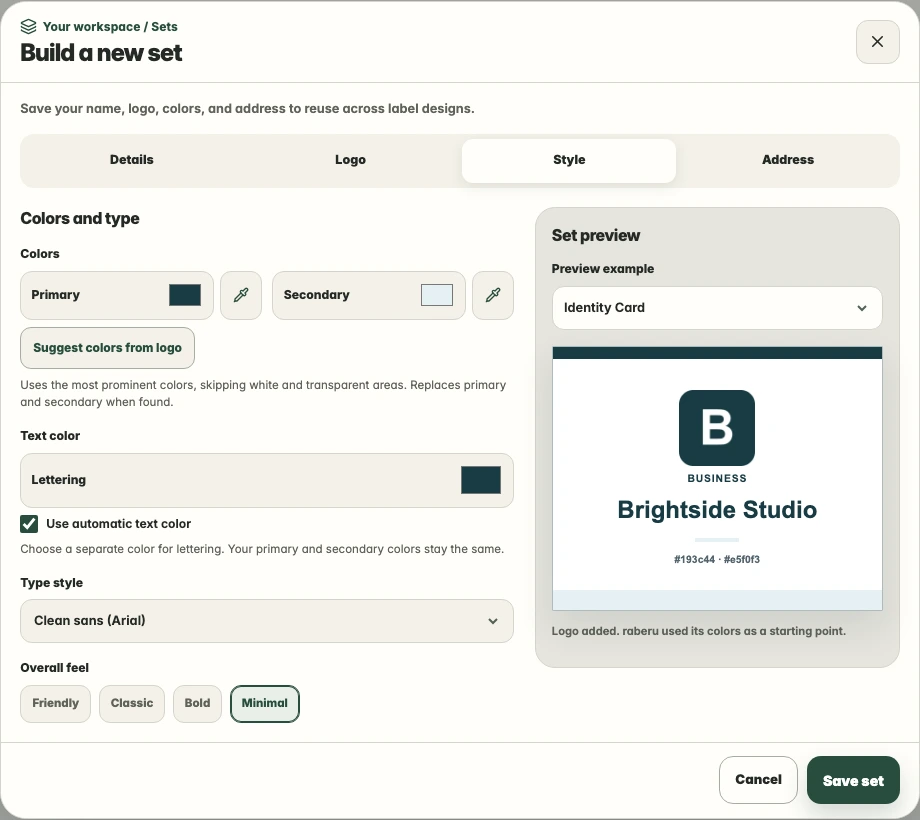
Use Style to choose your colors, type style, and overall feel. Review the preview and adjust the appearance to suit the labels you plan to make.
4. Save your set
Select Save set when the details look right. You can find the saved set in the Sets tab, edit it when needed, or use it to start a design.
How to use your saved set