The short version
Choose Set in Fill labels, select your saved set, and choose the supported details to apply. Select Apply Set, then fill the remaining label content and review the sheet.
1. Choose a saved set
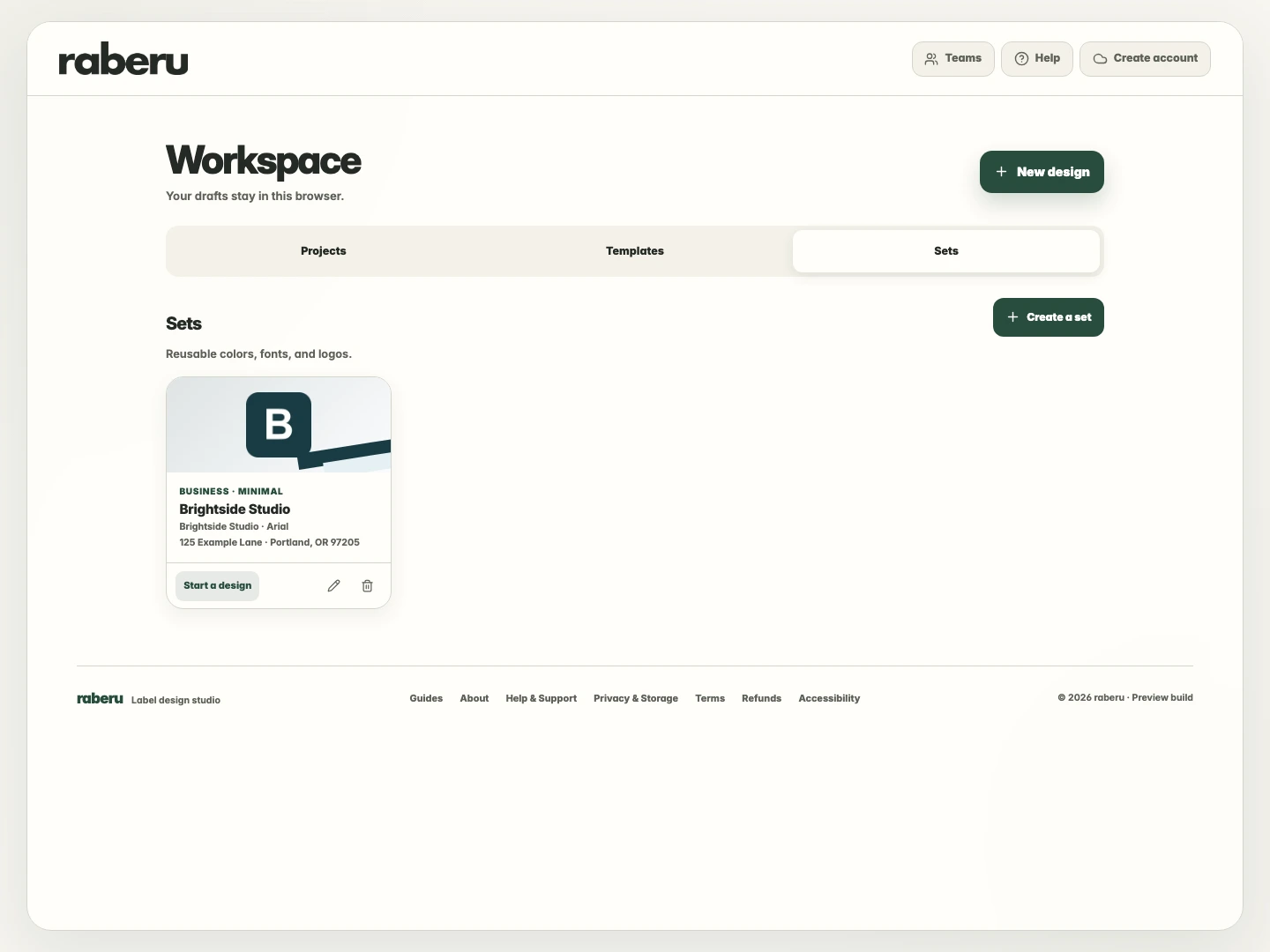
Open Sets in your workspace and find the set you want to use. Select Start a design to open a matching starting layout with its details applied.
2. Apply a set to an open design
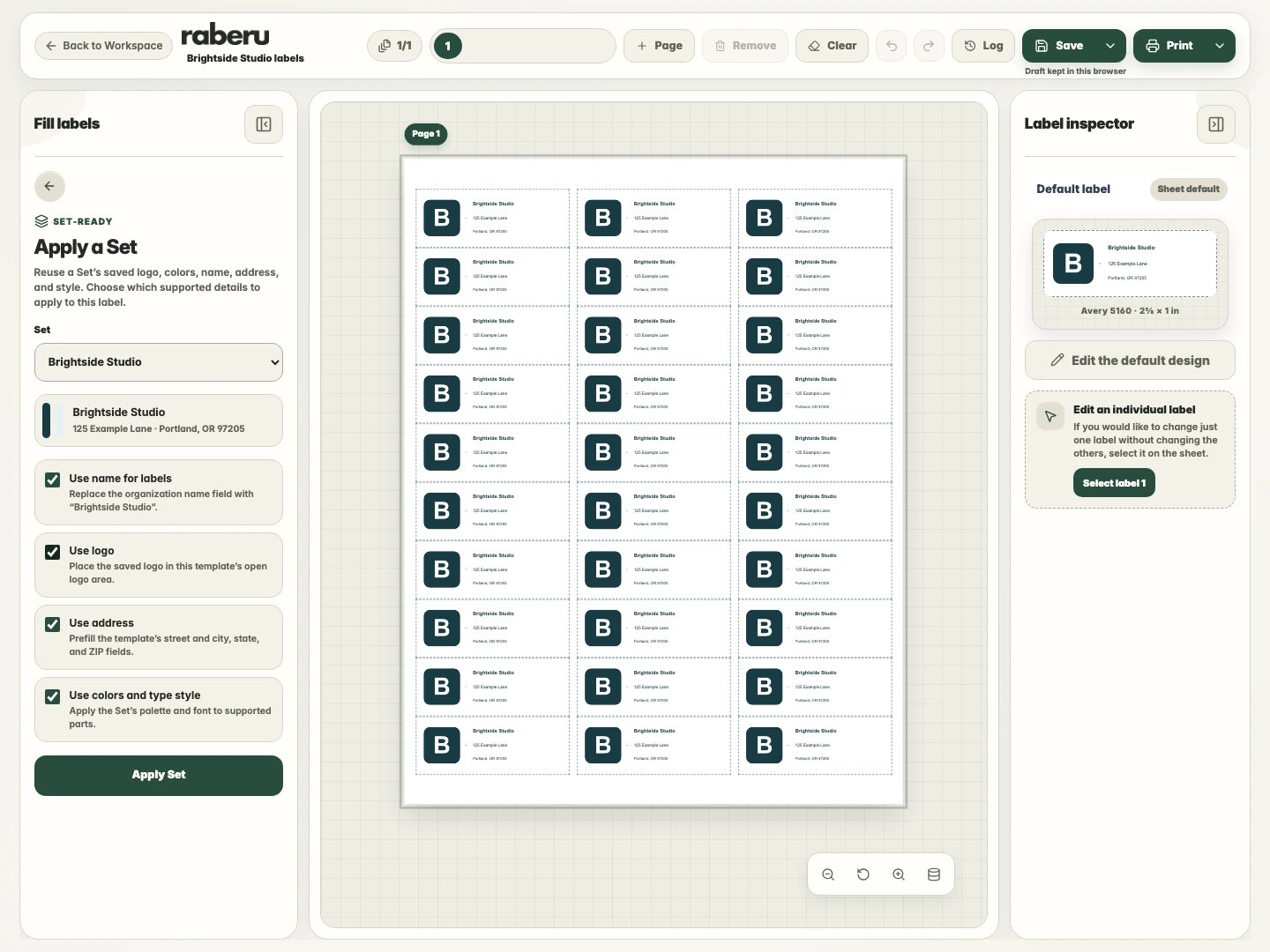
In an open design, choose Set in Fill labels and select your saved set. Choose which details to use, then select Apply Set. The available options depend on the fields and styling supported by the design.
3. Add the remaining content
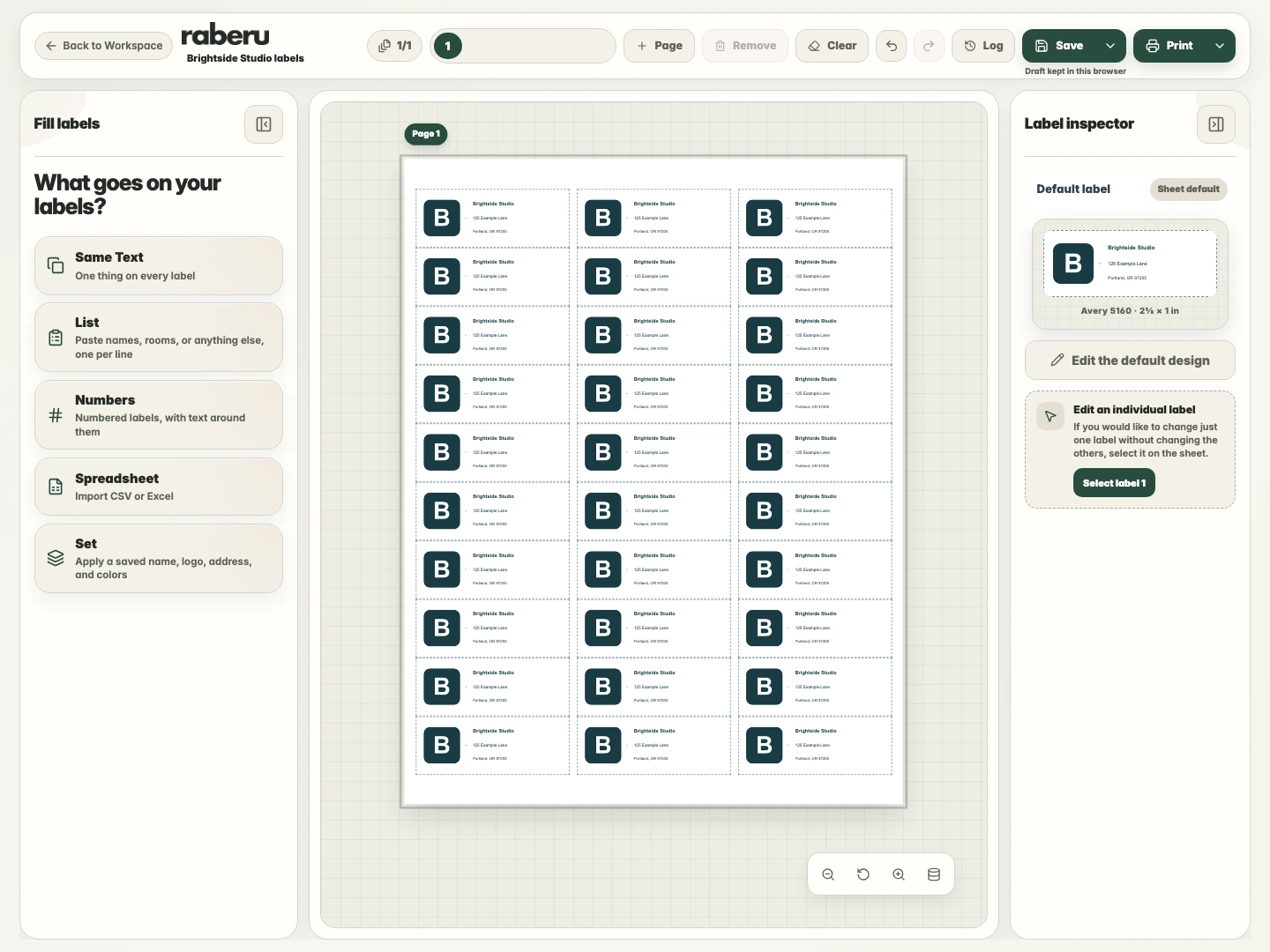
Review the applied name, address, logo, and appearance. Fill any remaining fields with the content your labels need, using Same Text, List, or Spreadsheet as appropriate.
4. Review and print
Check text fit and placement across the sheet, and make sure the layout matches your label paper. Use Printer setup to check alignment before printing.
Help with print alignmentCommon questions
Why are some set details unavailable?
A design can only use the set details its fields and styling support. Check the options shown in Apply Set. Choose a compatible design if you need a name, address, logo, or style option that the current design does not support.