The short version
In Fill labels, choose Same Text, select a field, and enter the wording once. Apply it to the whole sheet, then repeat for any other fields that need the same text.
1. Choose your design
Start with a design that suits your paper and the wording you want to print. Changes to the default design carry through to the labels that use it.
2. Add the shared text
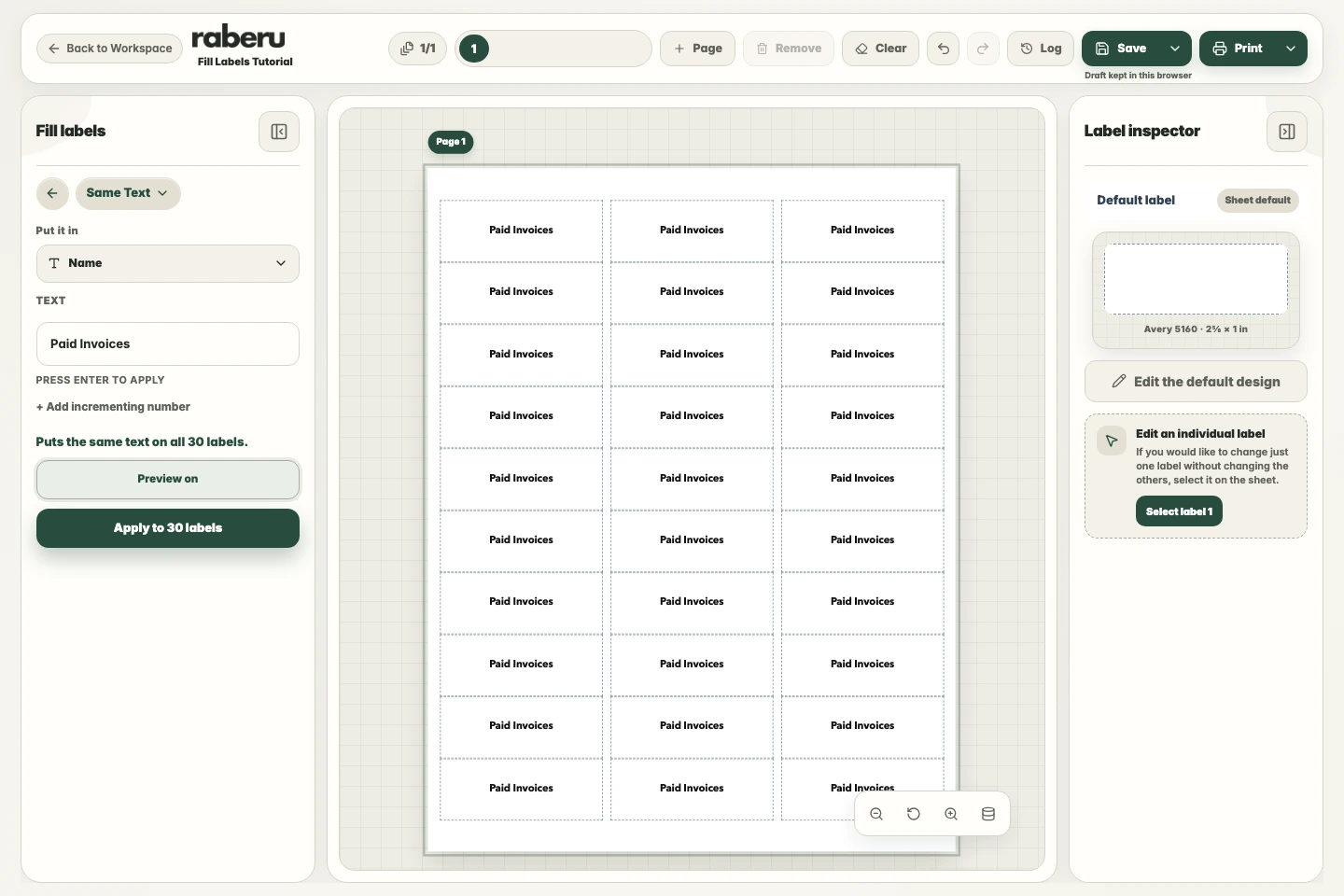
Choose Same Text in Fill labels, select the field you want to fill, and enter your wording. Check which labels will be affected before applying the change.
3. Review the sheet
Check that the wording fits and appears where you want it. Apply the text, then repeat for any other fields that need shared wording.
4. Review and print
Check that the text fits and the sheet matches your label paper. Use Printer setup to check alignment before printing. Choose the correct paper size and Actual size or 100% scale in the print window.
Help with print alignment