The short version
Sign in and open Teams from your workspace. Select Create team, enter the team name, and choose School as its purpose. Create the team to access Members, Library, and Settings.
1. Open Teams
Sign in to your raberu account and open Teams from your workspace. Select Create team to set up a new school team.
2. Add the school details
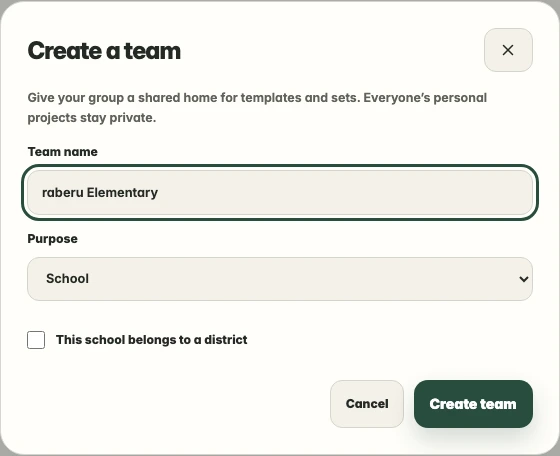
Give the team a recognizable name and choose School as its purpose. If you want to group the school under a district, select that option while creating the team. A district is optional.
3. Create the team
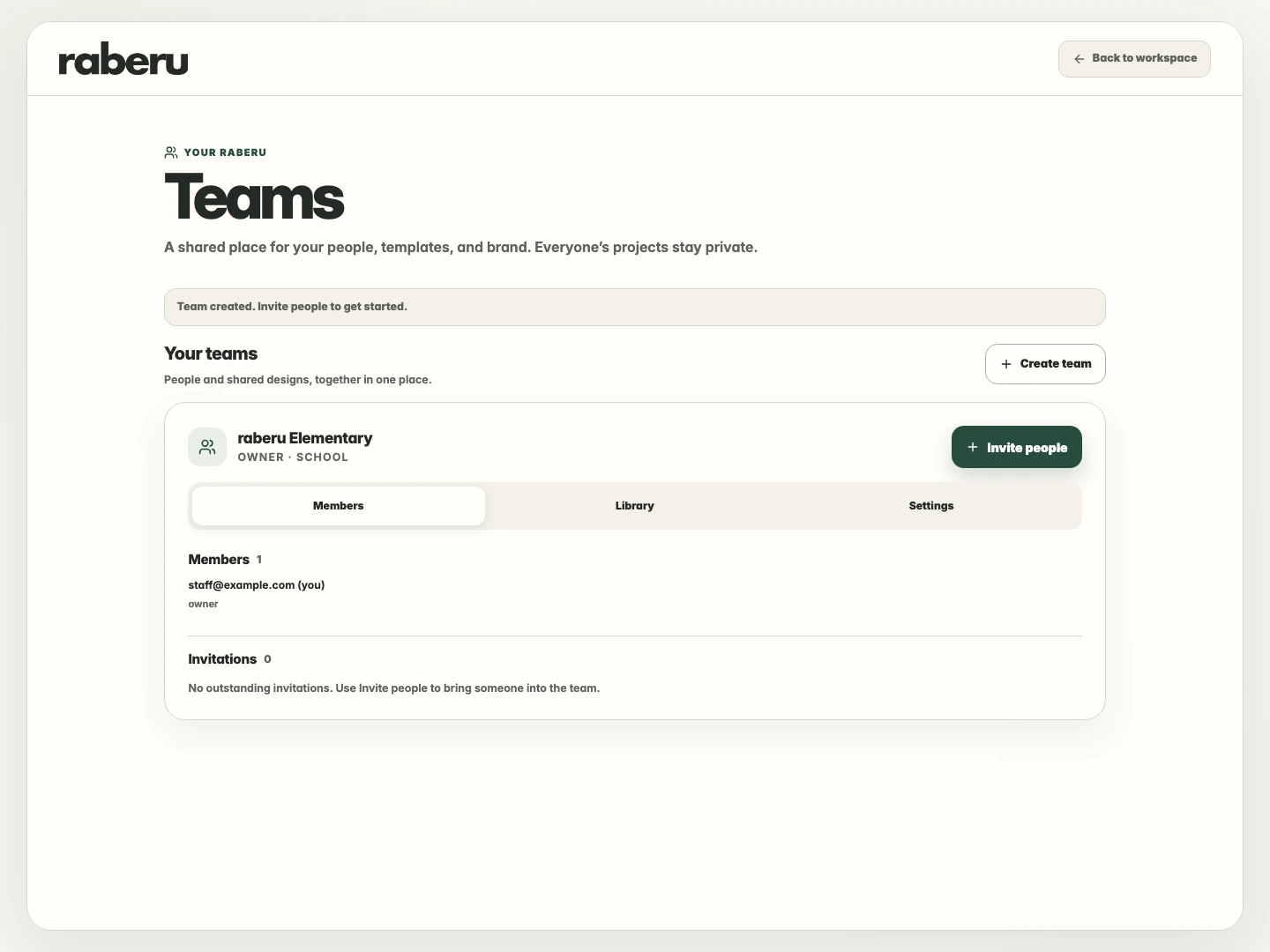
Select Create team when the details look right. Members is where you manage people, Library holds the shared sets and templates, and Settings contains team administration.
4. Bring in your staff
Invite the people who need access, then add the school’s shared set so everyone can start from the same identity.
Invite school team members