The short version
As a team owner or admin, open the school team and select Invite people. Use Email or Share link, then review and approve colleagues’ join requests in Members.
1. Open the right team
Open Teams and select the school team you manage. Choose Invite people to see the invitation options. You need to be a team owner or admin to invite others.
2. Choose an invitation method
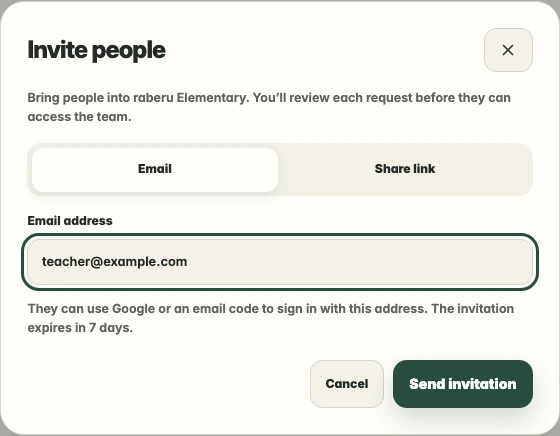
Use Email to send an invitation to a colleague’s address, or Share link to create a link for your group. Recipients sign in to request access; email invitations should be opened with the account that received them.
3. Review join requests
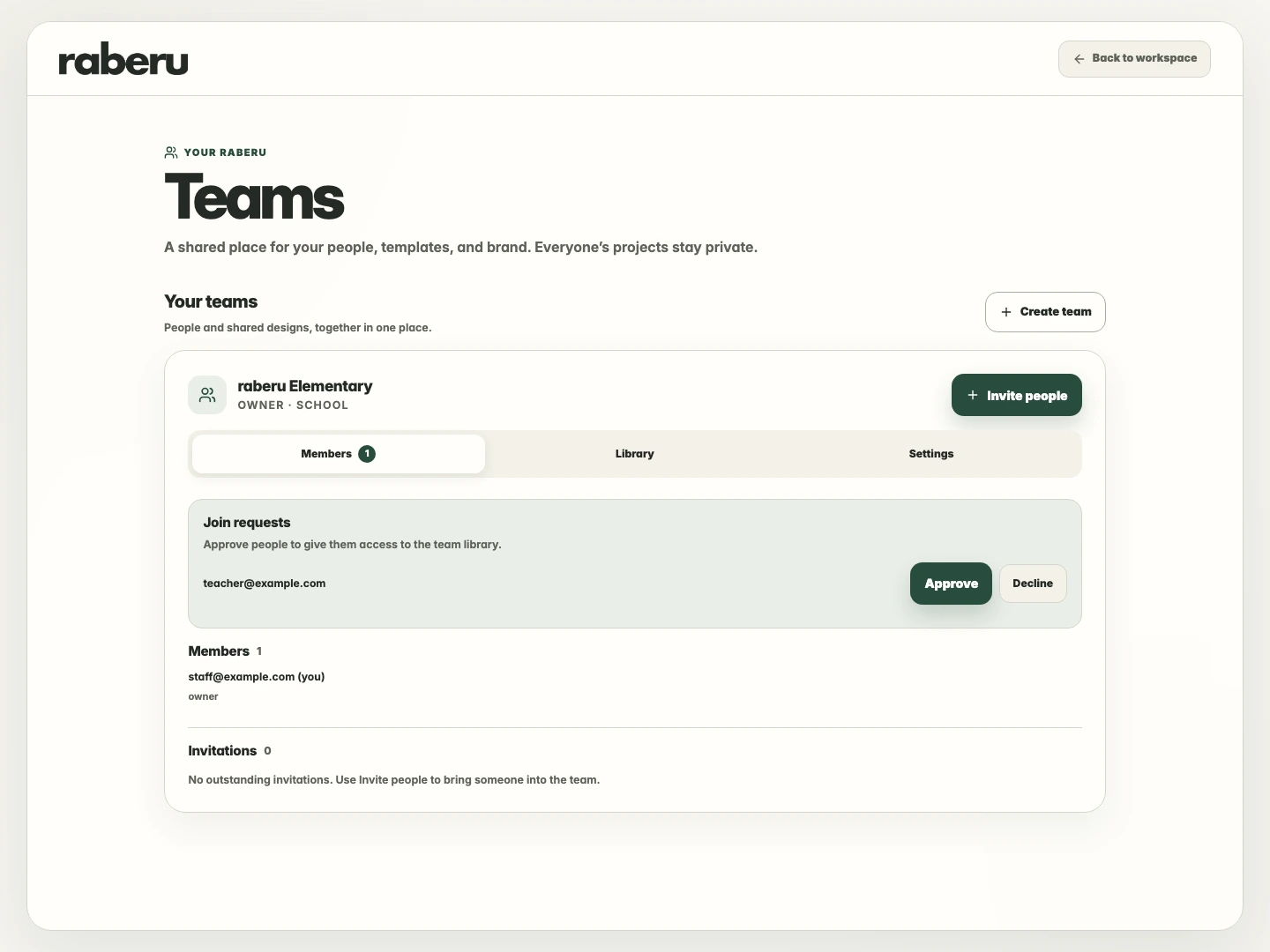
Return to Members to review pending requests. Approve the people who should have access to the school team, or decline a request when it does not belong there.
4. Check access and start sharing
Review the member list and choose the available roles to suit each person’s responsibilities. Once approved, members can use the team’s shared library.
Add your school as a shared set