The short version
Check that the label layout and paper size match your sheet, then print at Actual size or 100% scale. Use Printer setup for an outline test. Adjust the print position only when the whole sheet is shifted by a similar amount.
1. Check the layout and print settings
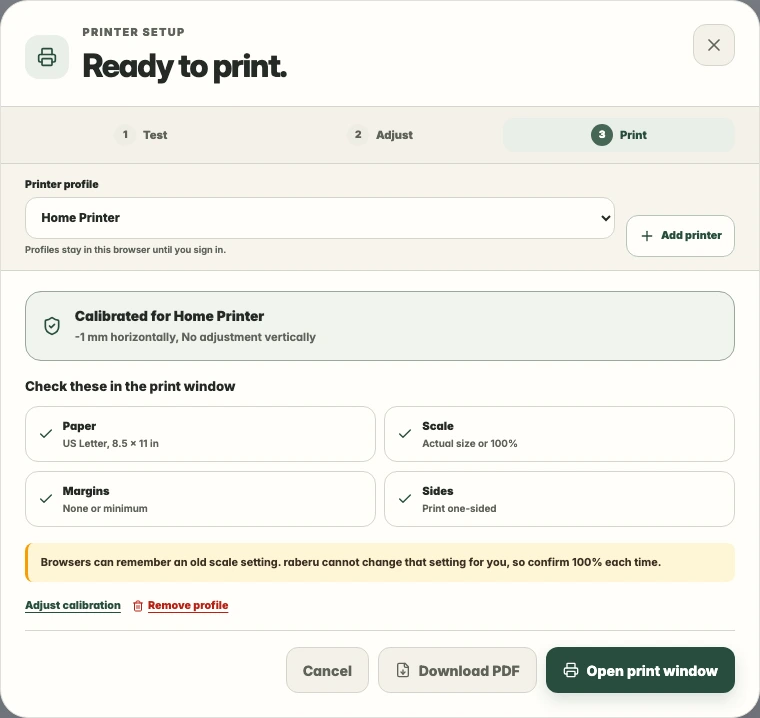
Make sure the selected sheet matches your label paper. In the print window, choose the correct paper size and Actual size or 100% scale. Turn off options that resize the page.
2. Check an outline test
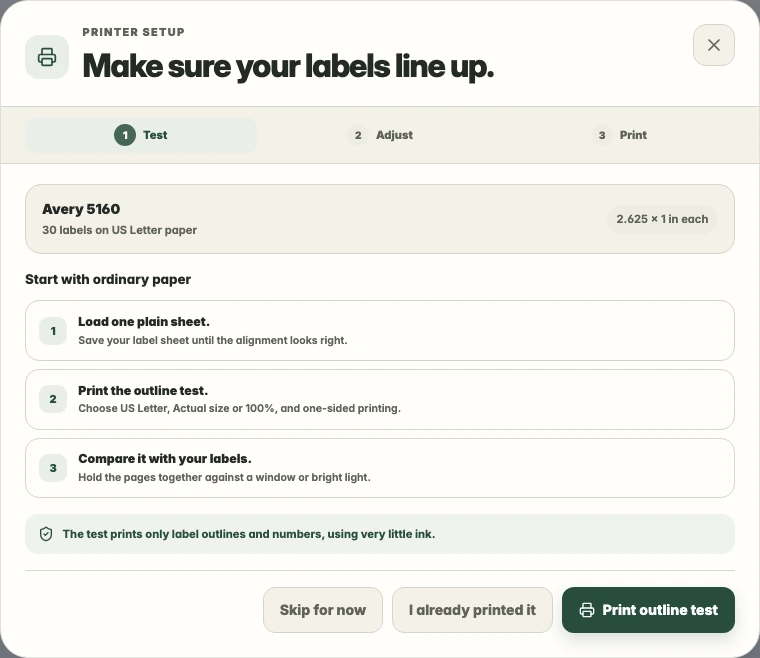
Open the menu beside Print and choose Printer setup. An outline test on plain paper lets you compare the printed positions with an unused label sheet. Check the top, middle, and bottom of the page.
3. Adjust the print position
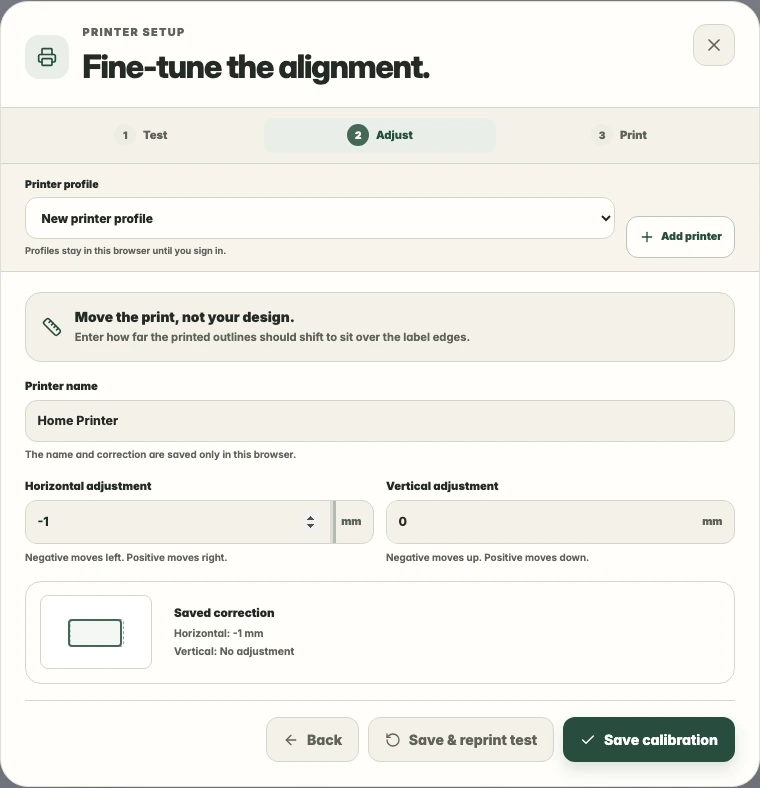
If the whole print is shifted by a similar amount, use the horizontal and vertical alignment controls. Make small adjustments and check the result again.
If the mismatch grows across the sheet, recheck the layout and scale. If the result changes between sheets, check the paper feed and printer settings.
4. Check before a larger print run
Once the alignment looks right, check a sheet on your label stock before printing a larger batch.
Check your label layoutCommon questions
Why does alignment get worse down the page?
An error that grows across the sheet can indicate a mismatch in the layout or print scale. Recheck the paper size, label spacing, margins, and Actual size or 100% scale setting. A position adjustment shifts the whole page; it does not correct spacing between labels.