The short version
In Fill labels, choose Numbers and select the barcode field. Set Start at, How many, and Count by, then review and apply the sequence. Check a printed barcode with your scanner.
1. Choose a barcode design
Use a design with a barcode field and enough space for the code and any readable text. Match the sheet layout to your label paper.
2. Set the sequence
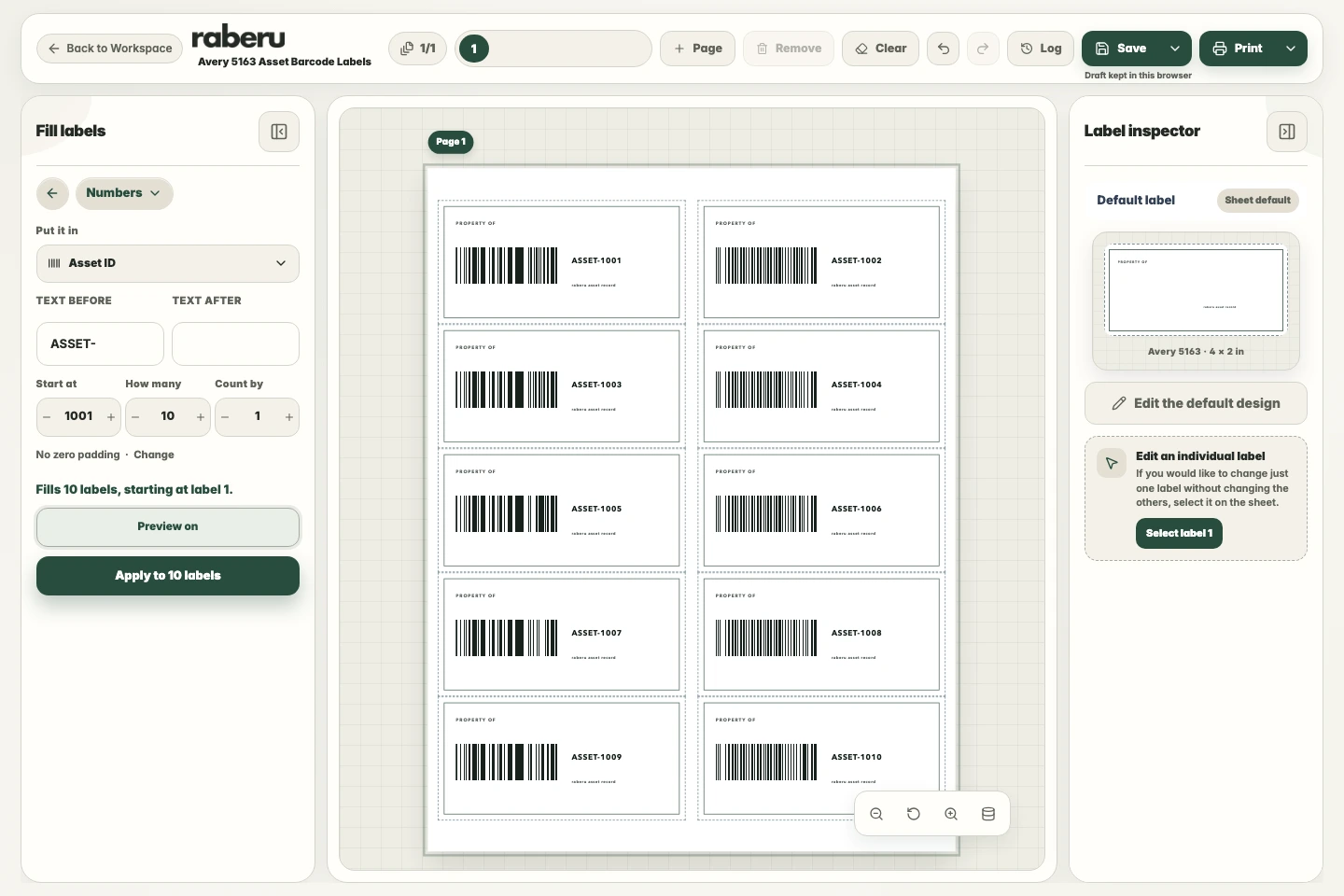
Choose Numbers in Fill labels and select the barcode field. Set the starting value, quantity, and increment. A prefix, suffix, or zero padding can help keep the identifiers in your preferred format.
3. Review and print
Check the sequence before applying it. Print at the correct size, then scan a printed code to confirm that it reads as intended. Use the next unused identifier when creating another batch.
Help with print alignmentCommon questions
Can barcode numbers include leading zeros or other text?
Use the zero-padding controls to keep a consistent number of digits. Text before and Text after add a prefix or suffix. The barcode format determines which characters are supported, so resolve any validation message before applying the sequence.