The short version
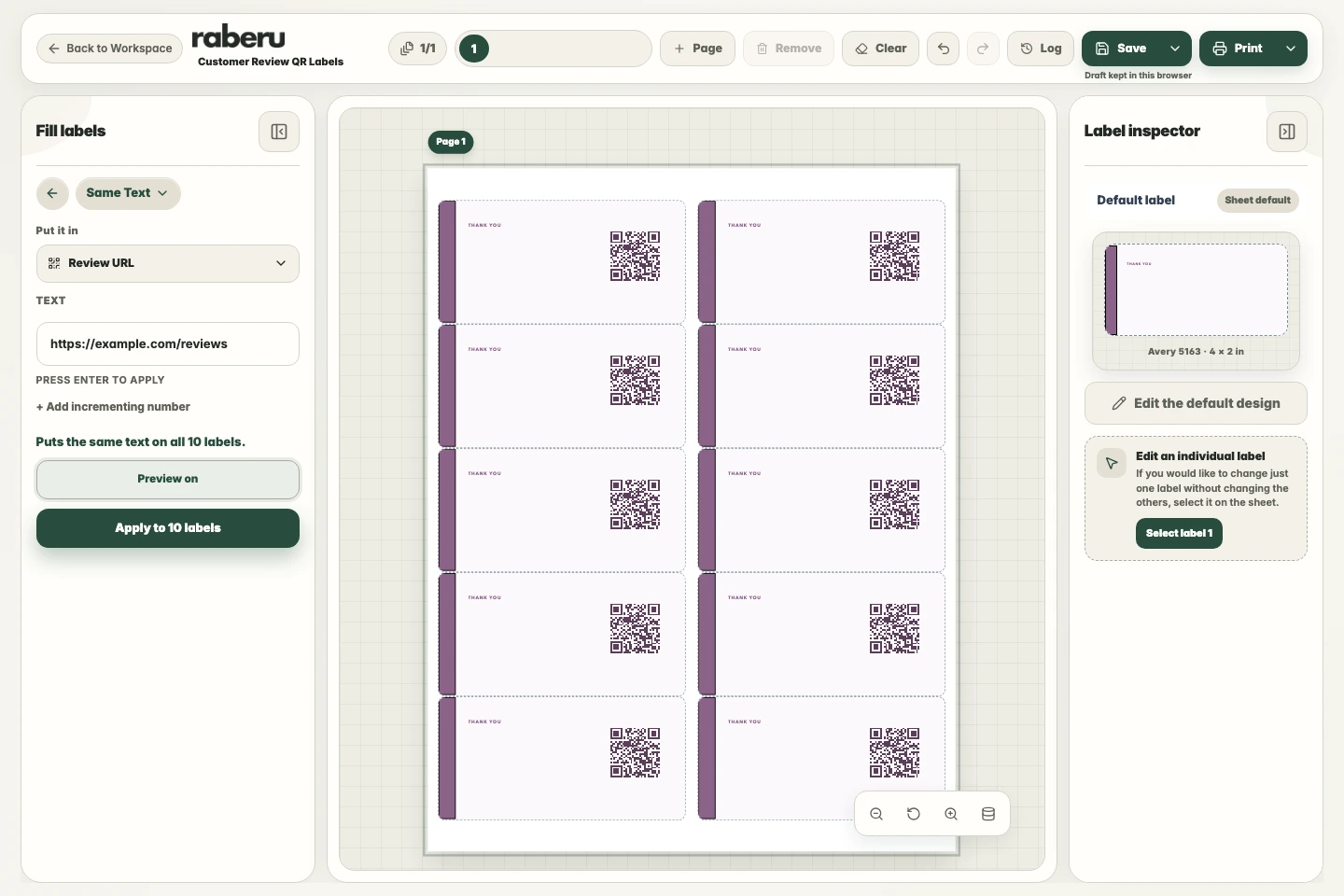
Choose a design with a QR field, then fill that field with your destination in Fill labels. Use Same Text for one link across the sheet or List for different links. Check a printed code before using the labels.
1. Choose a QR design
Choose a design with a QR field and a sheet layout that matches your label paper. Leave enough space around the code for it to scan clearly.
2. Add your destination
Select the QR field in Fill labels and enter the full destination address. Use Same Text for a shared link or List when each label needs a different destination. Apply the values after reviewing the preview.
3. Review the label and print
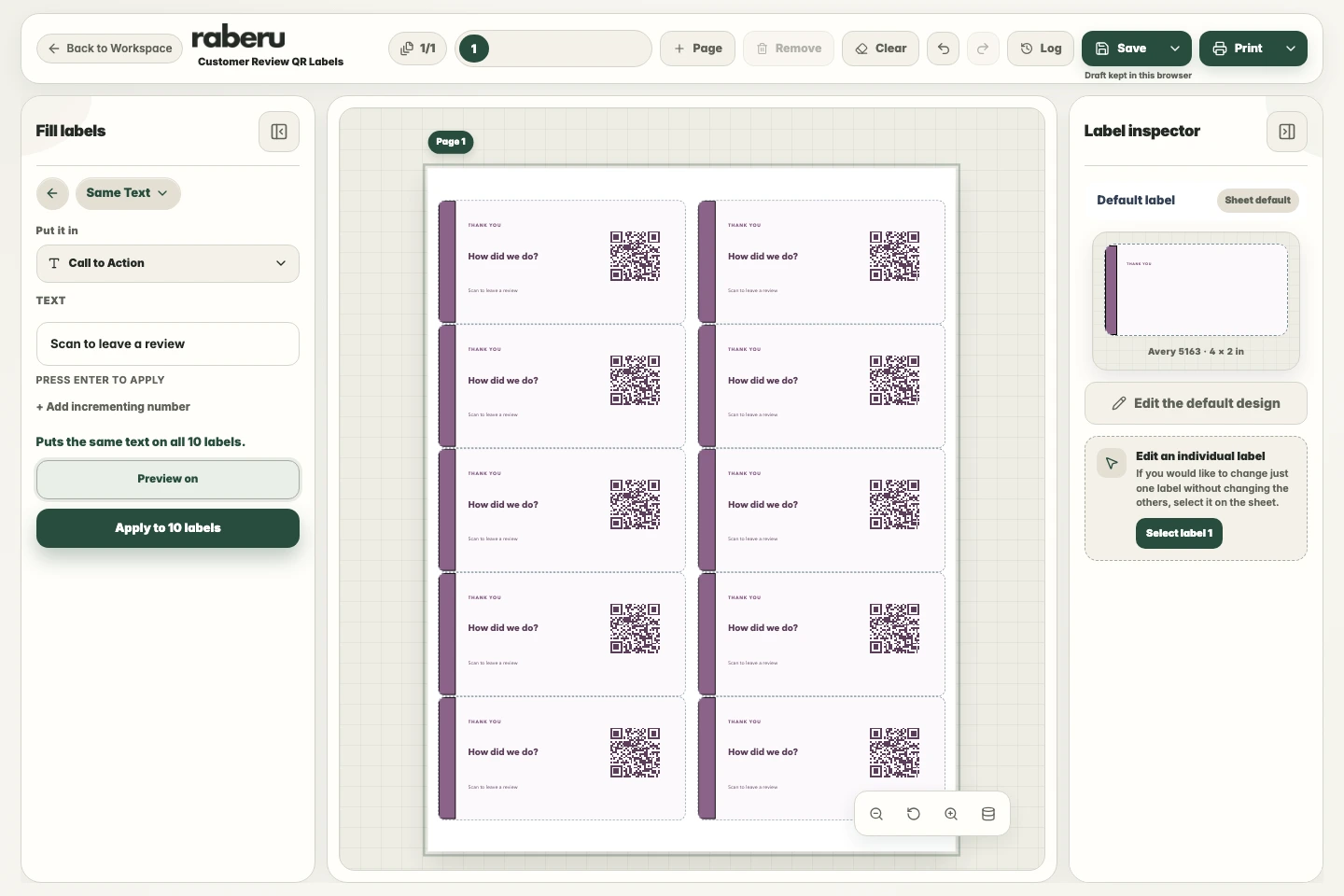
Adjust the wording around the code to suit its purpose. Check the destination, print at the correct size, and scan a printed code to confirm that it opens the intended page.
Common questions
Can every QR label open a different link?
Yes. Choose the QR field in Fill labels and use List with one destination per line. Use Same Text when all labels should open the same link. Review the destinations before applying them and check the printed codes.