The short version
To make labels without Microsoft Publisher, choose your label sheet in raberu, personalize a design, and fill the sheet with Same Text, List, or Spreadsheet. Check Printer setup and print at Actual size or 100% scale.
1. Match your label paper
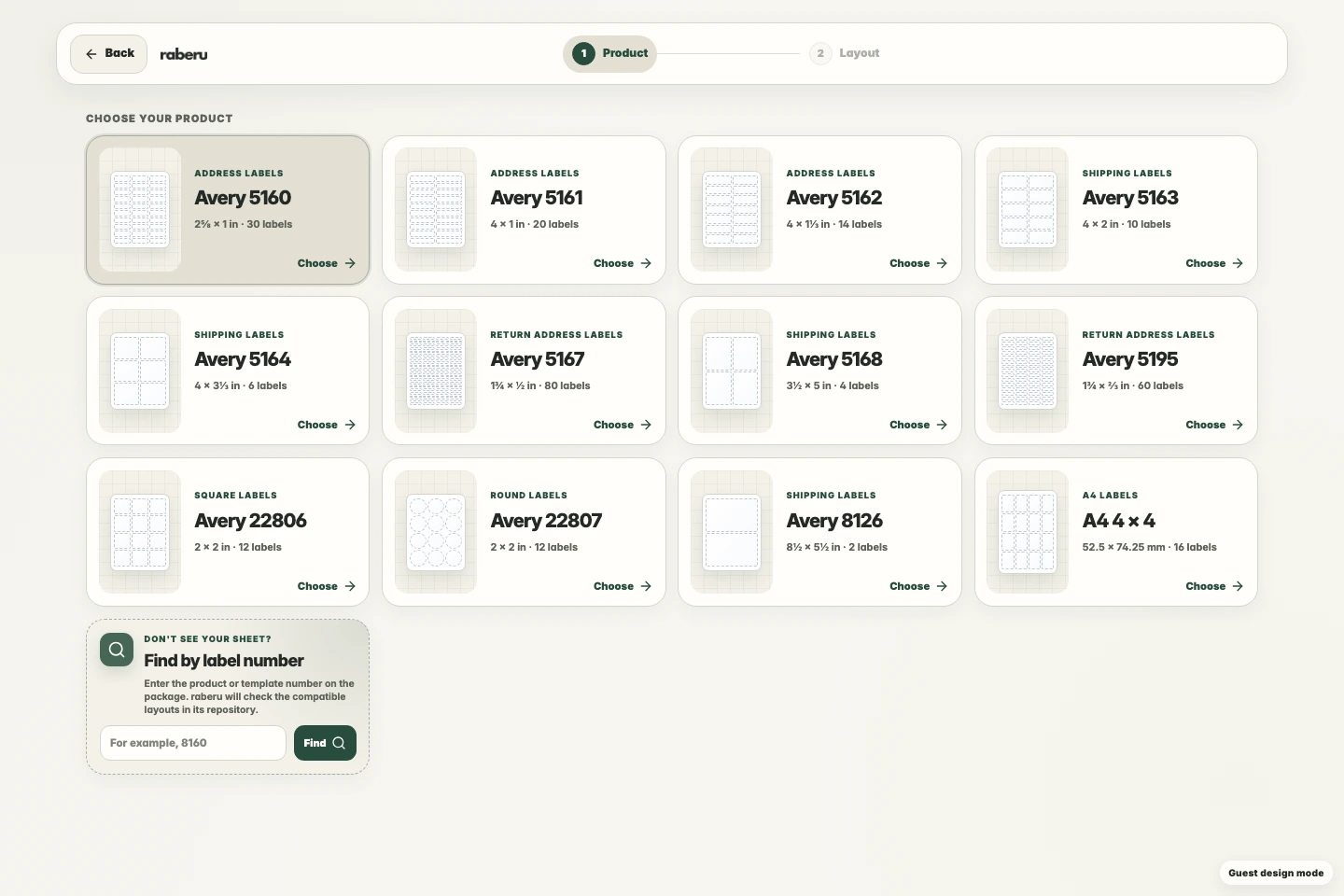
Choose a sheet layout that matches the product or template number on your label package. Check the label size and spacing before you begin.
2. Make the design your own
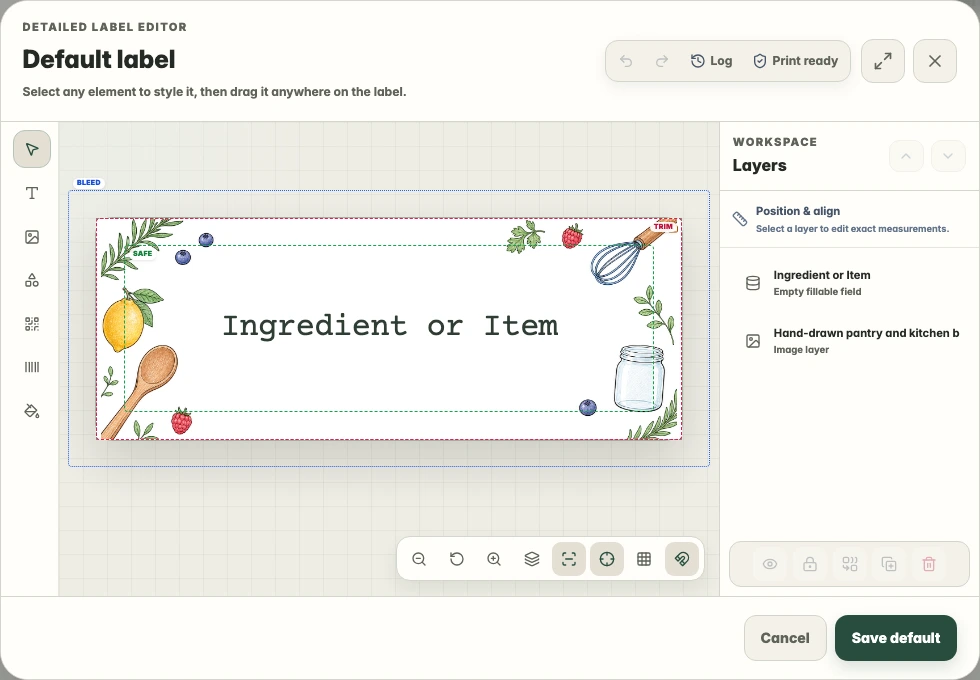
Choose a ready-made design or start with a blank label. Use Edit the default design to adjust shared text, fonts, images, and placement. Keep important content comfortably inside the label edges.
3. Add your content
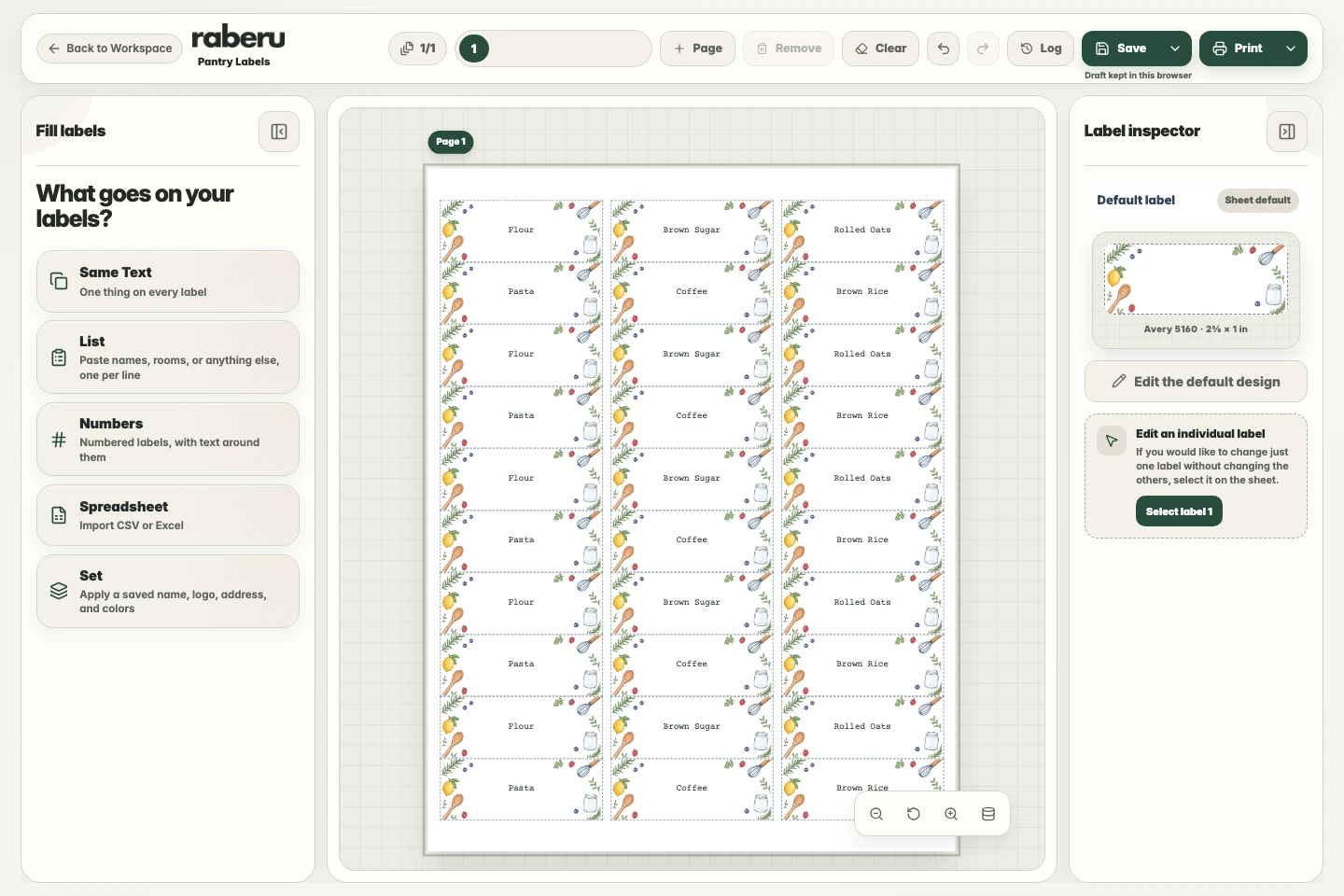
Use Same Text for repeated wording, List for different values, or Spreadsheet for several columns of information. Review the sheet and apply your content when it looks right.
4. Check and print
Use Printer setup to check alignment on plain paper. Choose the matching paper size and Actual size or 100% scale when printing. Printing and PDF export depend on your current print access.
raberu creates new label designs and does not open Publisher files.
Help with print alignmentFor Publisher support and retirement details, see Microsoft’s notice.
Microsoft's Publisher retirement notice